
1. Install on Linux
Run this command in a terminal. It detects your Linux distribution and processor, then installs the matching package.
curl -fsSL https://maldric.com/install.sh | shQuit Maldric before you install or update. Your library stays where you saved it.
Run the same command again to update an existing install. The same version changes nothing, and a newer install is not replaced by an older one.
Debian, Ubuntu and related distributions use the deb package. Fedora, RHEL and related distributions, and openSUSE or SLES, use the rpm. Arch Linux, Omarchy and related distributions use the pacman package. Intel/AMD 64-bit and ARM64 are supported.
Visit Downloads for checksums and release notes.
2. Make the desk comfortable
Choose your language in the introduction, then select Get started. Pick Follow system, Light or Dark for the appearance you prefer. You can change these choices later in Settings.
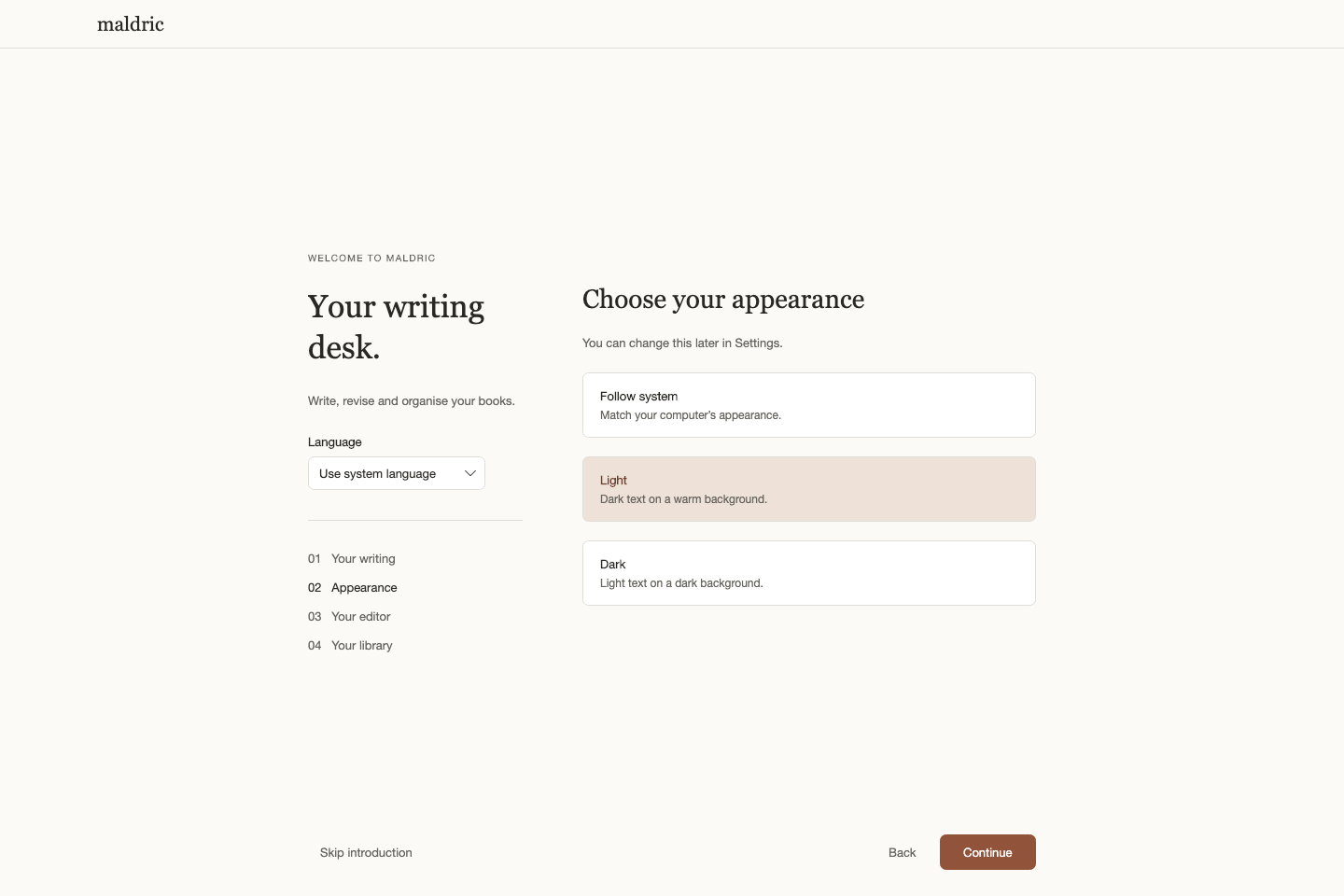
Select Continue to choose your editor. Quiet leaves reference highlights off; Enhanced marks names from your characters, places and lore. You can also choose Show formatting and Create breaks with Return. Continue to set up your library.
3. Create your library
Choose Create a library…, enter a library name and select Create. Then choose a new or empty folder on your computer. Maldric keeps your books, references and revisions together in that folder.
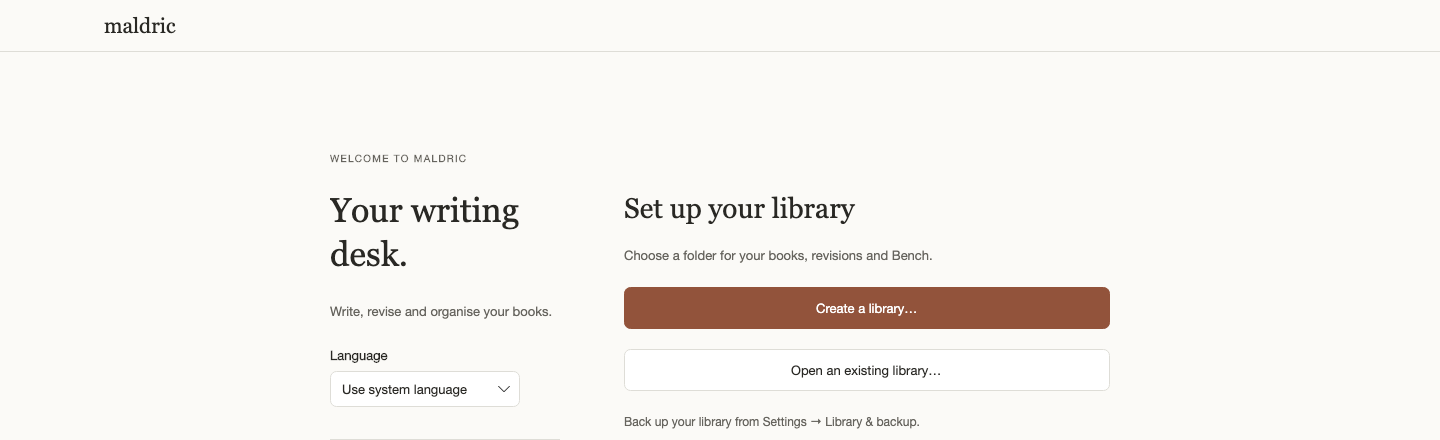
Already have a Maldric library? Choose Open an existing library… and select its folder. Keep the whole library together; the chapter files alone do not include your reference sheets or revision history.
4. Add your first book
Open the ⋯ menu at the top of your bookshelf. Choose New standalone book, or New series for books that share characters and lore. To add a book to a series, use the ⋯ menu beside its title and choose Add book.
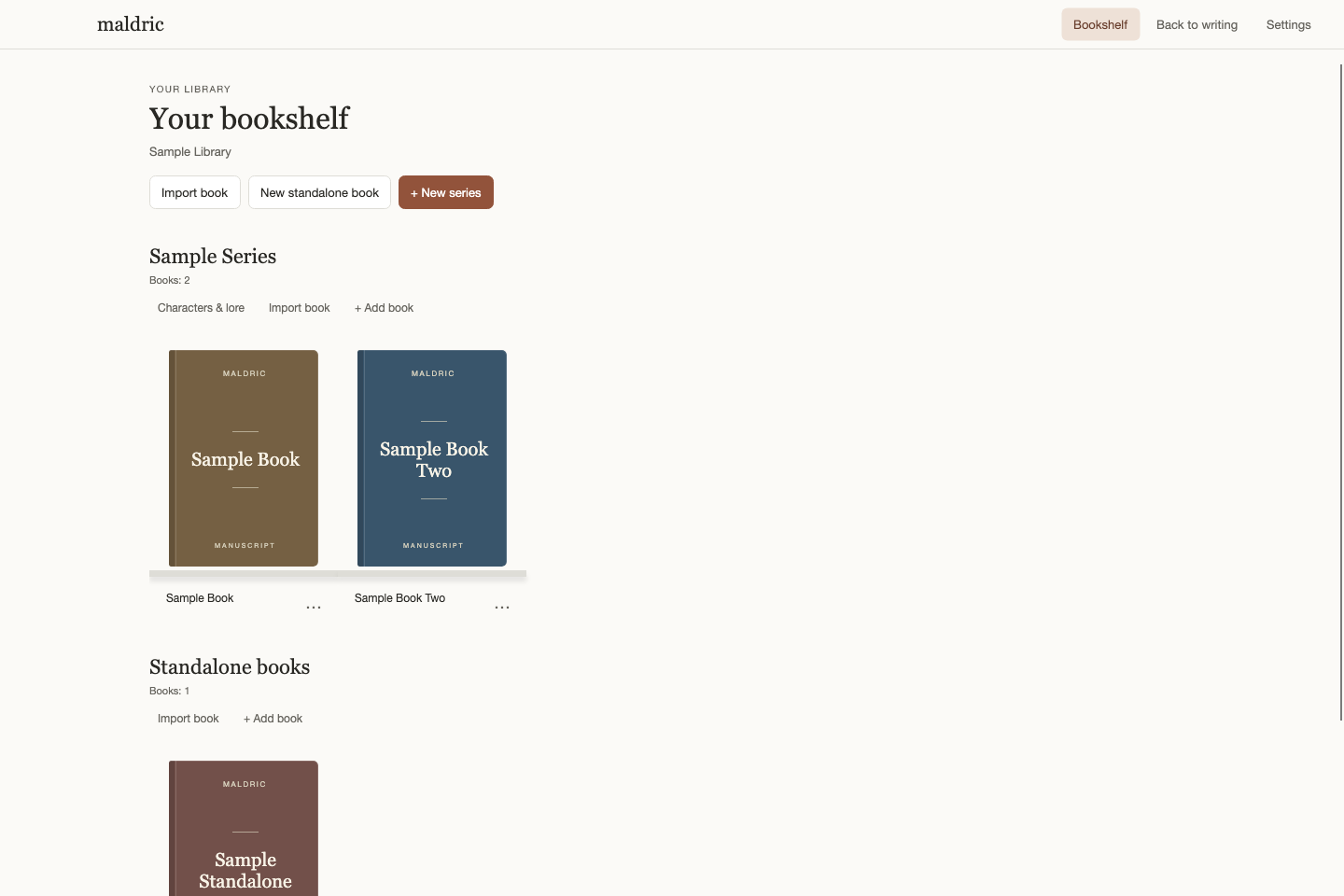
To bring an existing draft, choose Import book from the bookshelf menu. Select a DOCX, EPUB or PDF with selectable text, check the chapters and choose Add to library. Import creates a new book. Scanned PDFs need OCR first.
5. Start a chapter
Open your book and press Command-N on a Mac, or Ctrl-N on Windows or Linux, to create a chapter. Give it a title and start writing. As your book grows, scroll through the chapters as one continuous manuscript.
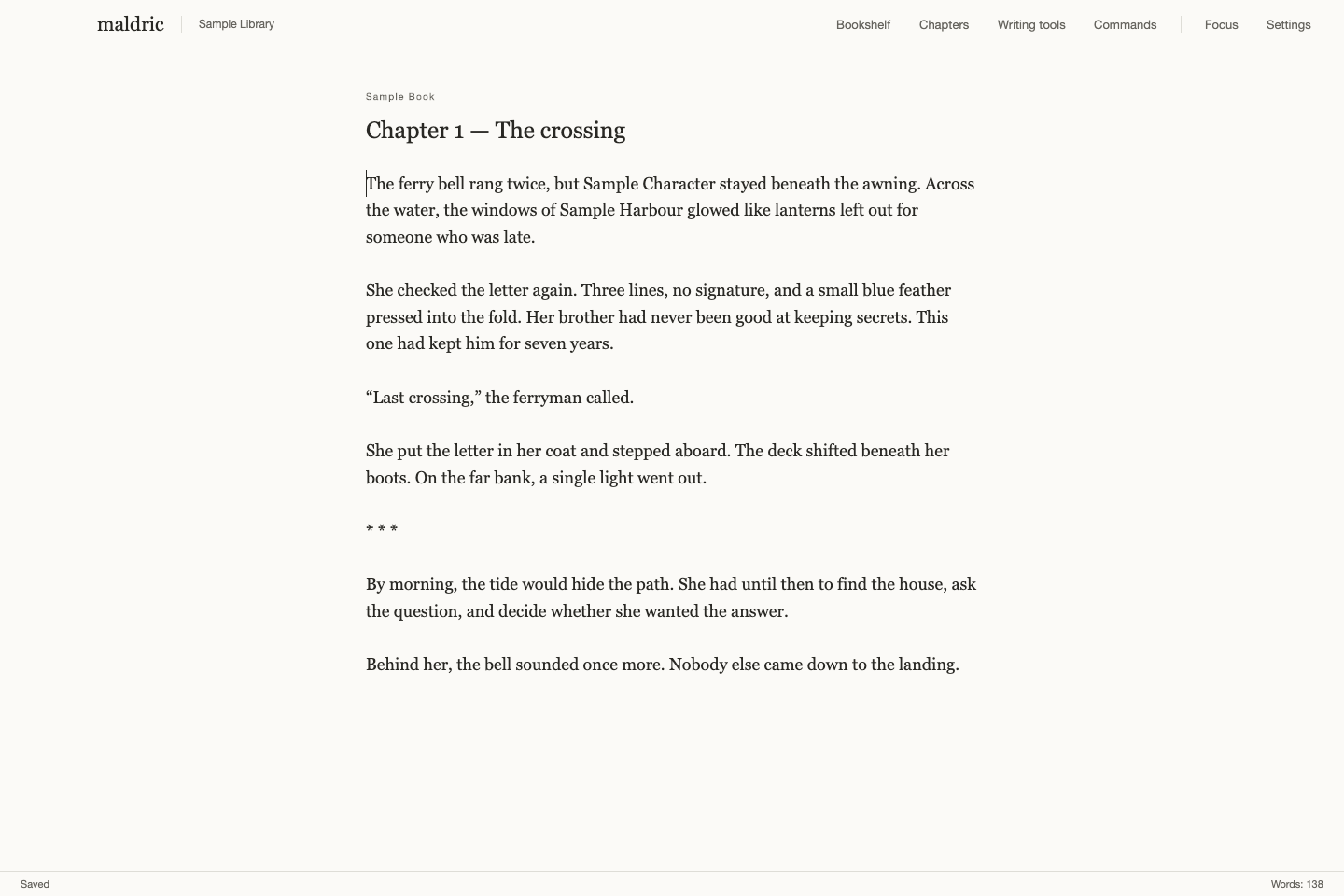
Open Index to jump to a chapter or look up Characters and Lore. Text autosaves about every five seconds; the footer shows Saved when it is stored. Press Command-S on a Mac, or Ctrl-S on Windows or Linux, to save a revision. To find Revisions or Bench, open Commands with Command-Shift-P or Ctrl-Shift-P. Bench keeps cut passages outside your draft.
Use Show formatting in Settings → Editor for bold, italics, headings, lists and scene breaks. The Source button shows the underlying Markdown. In the same settings, adjust the font, size, line spacing and writing width to suit you.
By default, two consecutive Returns create a scene divider; three create a new chapter and carry the following text with it. Turn off Create breaks with Return in Settings → Editor if you prefer ordinary newlines. Shift+Return always inserts a plain newline.
AI is optional. In Settings → AI agents, connect Codex, Cursor or Grok Build using your own provider account. Open Chat for help with a chapter or selected passage. Read each suggestion and choose whether to apply it. Provider charges and usage limits are separate.
When you want to read or share a finished draft, open the book title menu and choose Export. Set the type, page layout and front or back matter, then export EPUB, PDF or an editable Word document. Export pack saves all three together.
6. Keep a backup
Open Settings → Library & backup and choose Save library backup…. Save the ZIP outside your library folder, ideally with another copy on a different drive. It includes your books, references, assets and revision history.
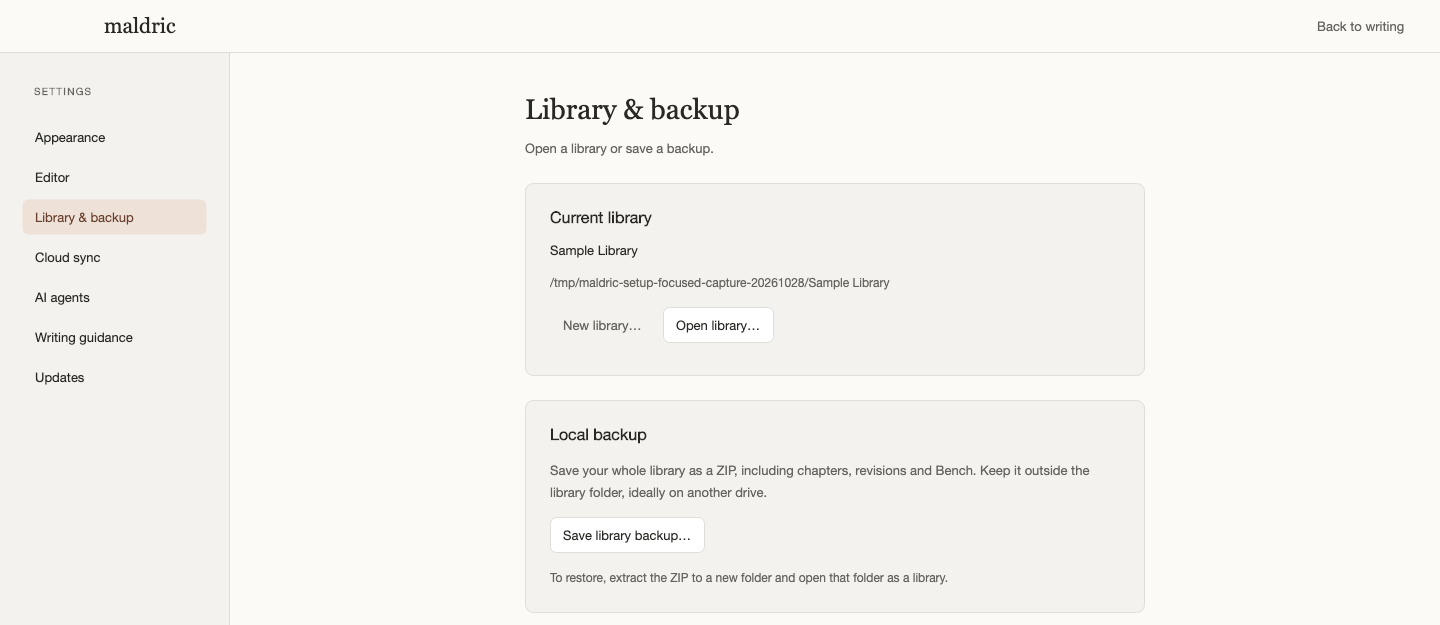
To restore a complete library, extract the ZIP into a new folder, then use Open library… in Settings → Library & backup. Import book is for bringing a manuscript into a library, not restoring a library backup.
The app and local backups are free. Read Pricing for optional Maldric Cloud backup and sync, or the FAQ for more about your work.